A custom indicator for MetaTrader 4 is a single .ex4 file. Installing it means putting that file in the MQL4\Indicators folder of your terminal and letting the Navigator read the folder again. On a Windows PC, or on the macOS build of MT4, the whole job takes about two minutes. The steps below use an indicator downloaded from MT Indicator Hub, and they work the same way for any other .ex4 file.
Installation guide
How to Install an Indicator in MetaTrader 4
- MT4MetaTrader 4
- Step-by-step · 5 steps
- .ex4 file
- About 2 min
-
Step 01 / 05
Download the .ex4 File
Every indicator page on MT Indicator Hub has a download bar right under the image gallery. Select MetaTrader 4 in the platform switch, then press Download for MT4. The browser saves the .ex4 file at once: there is no account to create and no archive to unpack. The bar also lists the file size and the licence, so you can confirm it is the MT4 build before leaving the page.
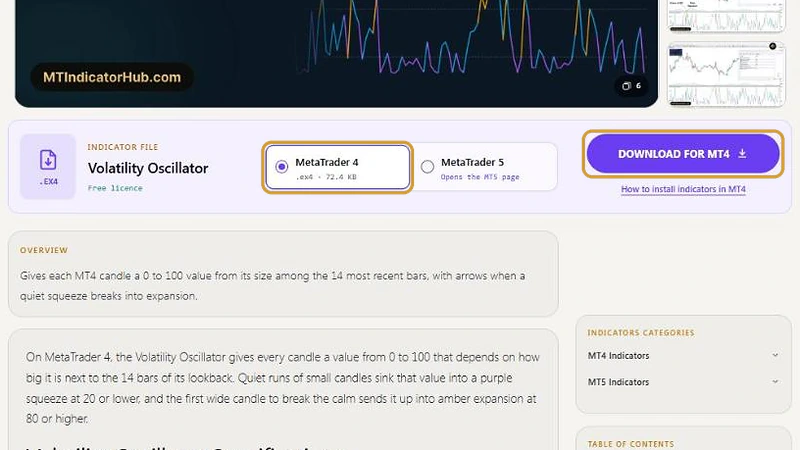
Select MetaTrader 4, then press Download for MT4. -
Step 02 / 05
Open the MT4 Data Folder
Start MetaTrader 4 and click File > Open Data Folder. Windows Explorer opens the data folder that belongs to this exact terminal. If you run several copies of MT4 from different brokers, each copy keeps its own data folder, so always open it from the terminal where the indicator should run.
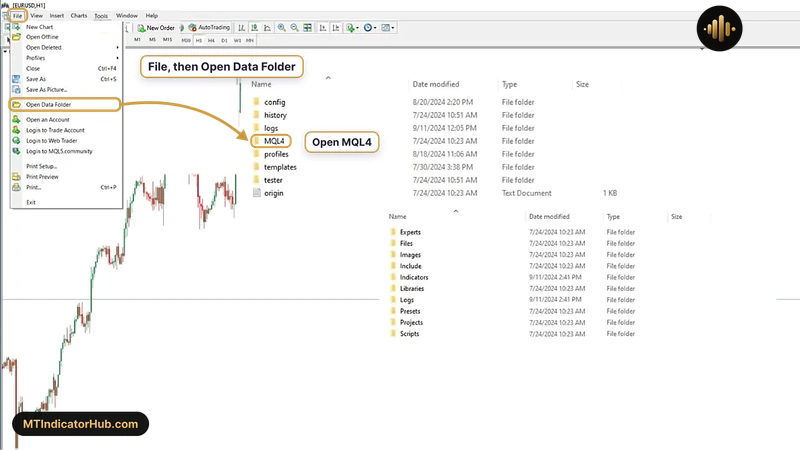
File, then Open Data Folder: the folder of this terminal opens. -
Step 03 / 05
Copy the File into MQL4 > Indicators
Inside the data folder, open MQL4 and then Indicators. Paste or drag the downloaded .ex4 file into it. The MQL4 folder also holds Experts, Scripts, Include, Libraries and a few others; a file dropped into any of those, or left at the top of the data folder, will never show up as an indicator.
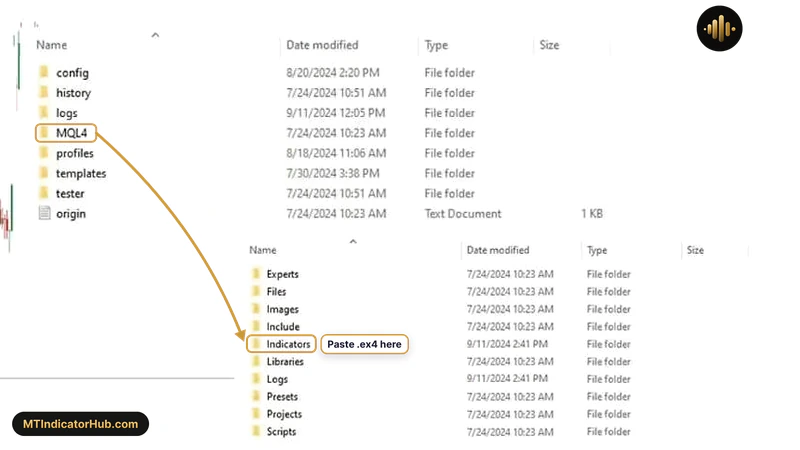
MQL4, then Indicators: the .ex4 file goes here. -
Step 04 / 05
Refresh the Navigator
Return to MT4 and open the Navigator window with Ctrl+N. Right-click Indicators and choose Refresh: the new name appears in the list under Indicators. If you prefer, close and reopen MetaTrader 4 instead, which reloads the folder in the same way.
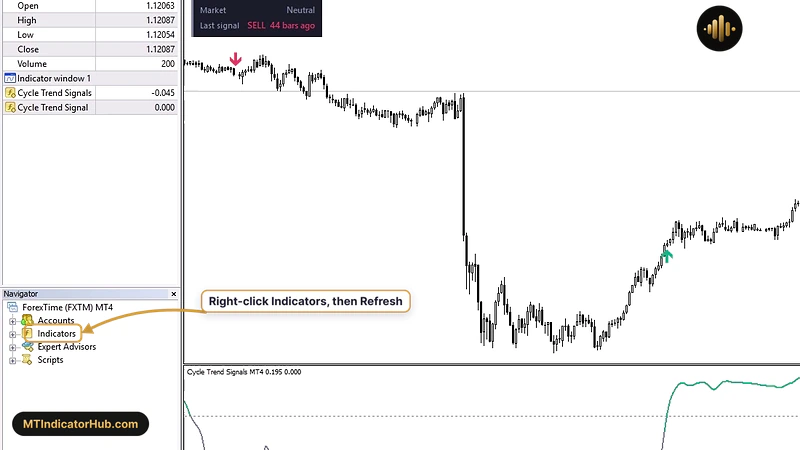
A right-click on Indicators in the Navigator, then Refresh. -
Step 05 / 05
Attach It to a Chart
Drag the indicator from the Navigator onto any chart, or double-click it while that chart is active. The same list is also under Insert > Indicators > Custom.
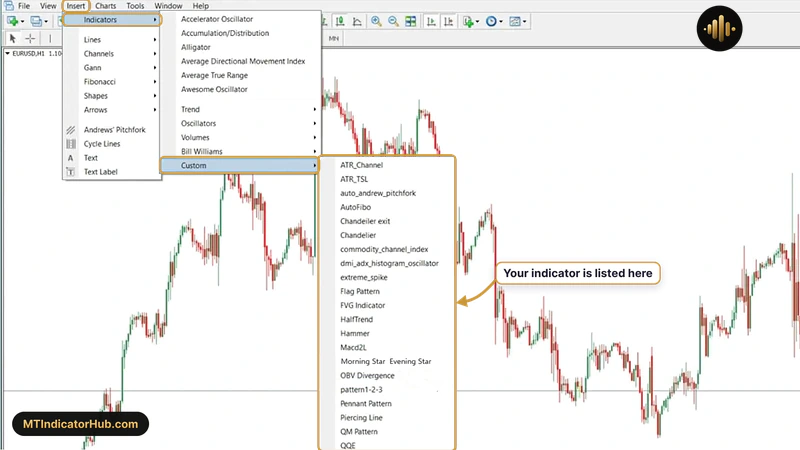
Insert, Indicators, Custom: every installed custom indicator is listed. A properties window opens with six tabs: About, Common, Inputs, Colors, Levels and Visualization. Inputs holds the settings explained on the indicator's own page, Colors sets its lines and arrows, and Visualization picks the timeframes it shows on. Press OK and the indicator draws on the price chart or in a separate window below it.
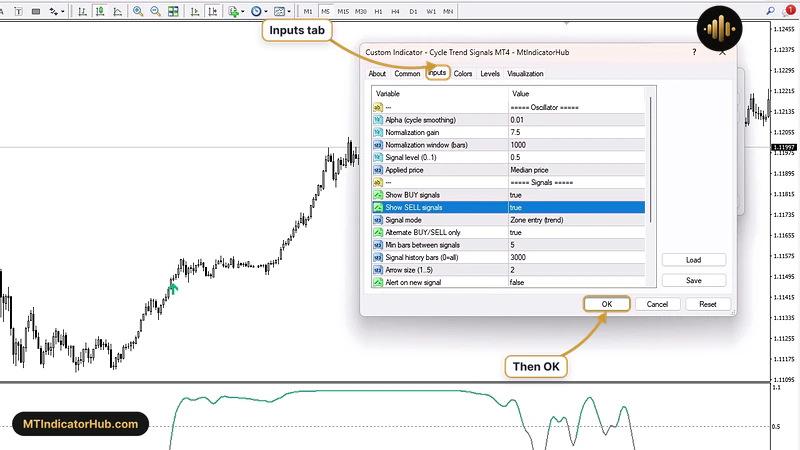
The Inputs tab of an MT4 indicator, then OK.
Installation complete
The indicator is listed under Indicators in the MetaTrader 4 Navigator and drawn on your chart.
After installing
Change Chart and Indicator Colours
The look of the chart itself lives in its Properties window (F8). On the Colors tab, the Color scheme list switches between Yellow on Black, Green on Black and Black on White, and every element such as background, grid, bars and candles can also be picked one by one. The indicator keeps its own colours: open Charts > Indicators List (Ctrl+I), select it, press Edit and change them on its Colors tab. When the chart looks right, Charts > Template > Save Template stores the colours, the indicator and its settings for the next chart you open.
Troubleshooting
If the Indicator Does Not Appear
- The file went into the data folder of another MT4. Open File > Open Data Folder again from the terminal you are using.
- It is an .ex5 file. MetaTrader 4 reads only .ex4 files, so download the MT4 version instead.
- It sits in the wrong folder. It must be in MQL4\Indicators, not in MQL4\Experts or at the top of the data folder.
- The Navigator has not been refreshed yet. Right-click Indicators and choose Refresh, or restart MT4.
- If it is still missing, open the Terminal window (Ctrl+T) and read the Experts and Journal tabs, where MT4 writes a line when an indicator fails to load.
FAQ
Frequently asked questions
No. The MT4 apps for Android and iPhone, and the web terminal, only offer the built-in indicators. A custom .ex4 file needs the desktop MetaTrader 4 on Windows or macOS.
Open File > Open Data Folder in MT4, then MQL4 and Indicators. The full path differs from one terminal to another, which is why the menu command is the safest way to reach it.
No. In the Navigator, right-click Indicators and choose Refresh. A restart works too, because MT4 reads the Indicators folder each time it starts.
Most often the file is in another terminal's data folder, in a folder other than MQL4\Indicators, or it is an .ex5 file meant for MetaTrader 5.
Open Charts > Indicators List (Ctrl+I), select the indicator and press Delete. This only takes it off the chart; the .ex4 file stays in the Indicators folder.