MetaTrader 5 loads custom indicators from compiled .ex5 files kept in one place: the MQL5\Indicators folder of the terminal. Once the file is there and the Navigator has been refreshed, the indicator can go on any chart. Here is the full route, from the download on MT Indicator Hub to the first chart, whether MT5 runs on Windows or on macOS. It is the same for any .ex5 file, whoever made it.
Installation guide
How to Install an Indicator in MetaTrader 5
- MT5MetaTrader 5
- Step-by-step · 5 steps
- .ex5 file
-
Step 01 / 05
Download the .ex5 File
Open the indicator you want on MT Indicator Hub and look below the screenshots for the download bar. With MetaTrader 5 chosen in the platform switch, click Download for MT5. You get the .ex5 file directly, with no sign-up and no zip file, and the bar shows its size and licence next to the button.
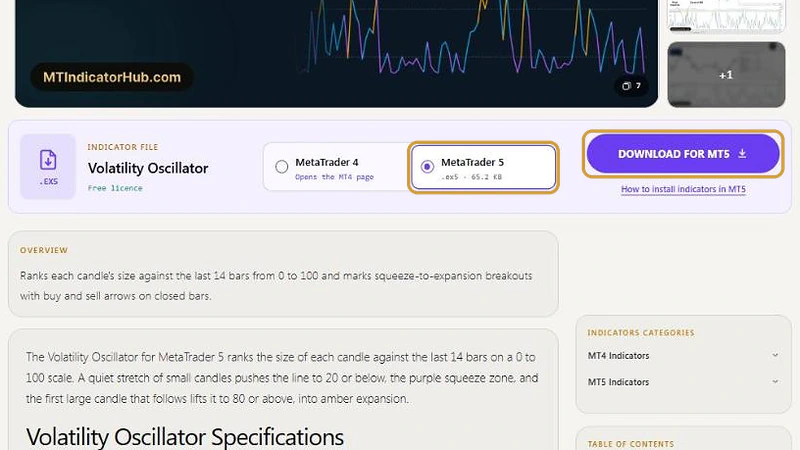
MetaTrader 5 selected, then Download for MT5. -
Step 02 / 05
Open the MT5 Data Folder
In MetaTrader 5, go to File > Open Data Folder. This opens the folder of the terminal you clicked in, not a shared one: two MT5 installs from two brokers have two separate data folders. Pick the terminal first, then open its folder.
-
Step 03 / 05
Place the .ex5 in MQL5 > Indicators
Go into MQL5, then Indicators, and copy the .ex5 file there. Its neighbours in the MQL5 tree are folders such as Experts, Scripts, Services and Include. Anything stored in one of them, or in the data folder root, stays invisible to the indicator list.
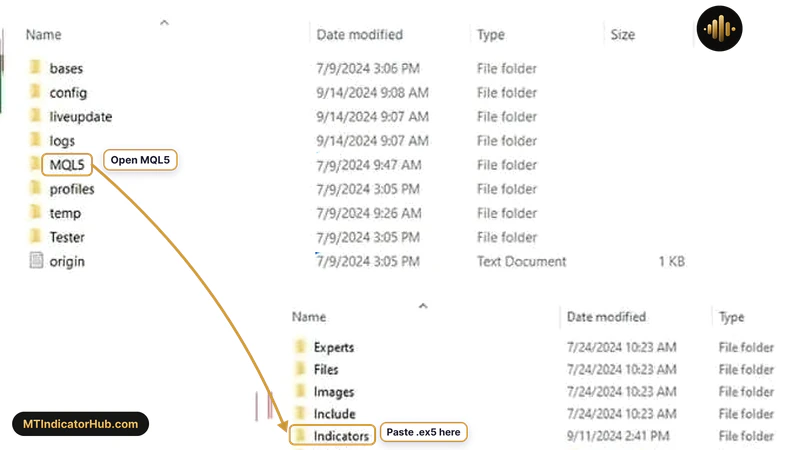
MQL5, then Indicators: the .ex5 file goes here. -
Step 04 / 05
Reload the Indicator List
Switch back to MT5 and show the Navigator (Ctrl+N). A right-click on Indicators brings up a short menu; Refresh makes MT5 scan the folder again, and the new file is listed next to built-in groups such as Examples. Restarting the terminal gives the same result.
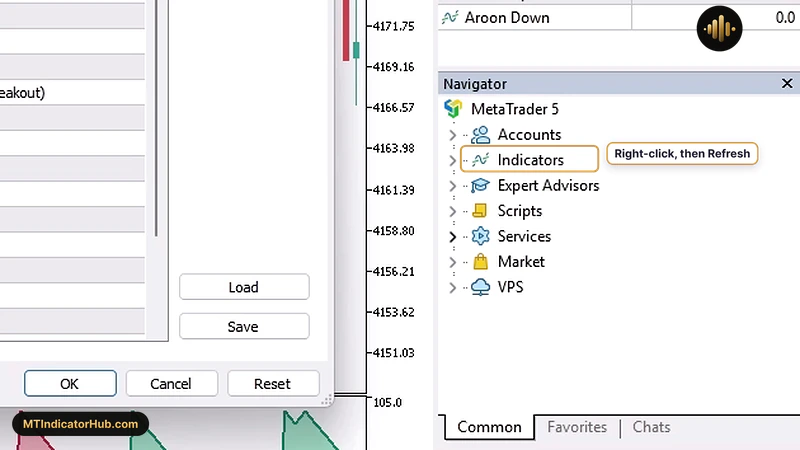
A right-click on Indicators, then Refresh. -
Step 05 / 05
Put It on a Chart
From the Navigator, drag the name onto a chart, or select the chart and double-click the name. Insert > Indicators > Custom leads to the same list. MT5 then shows the indicator's properties in six tabs: Common, Inputs, Colors, Levels, Scale and Visualization. The Common tab carries the name and version of the file, Inputs has the settings described on its page, and Scale fixes the minimum and maximum of a separate indicator window. Click OK to draw it.
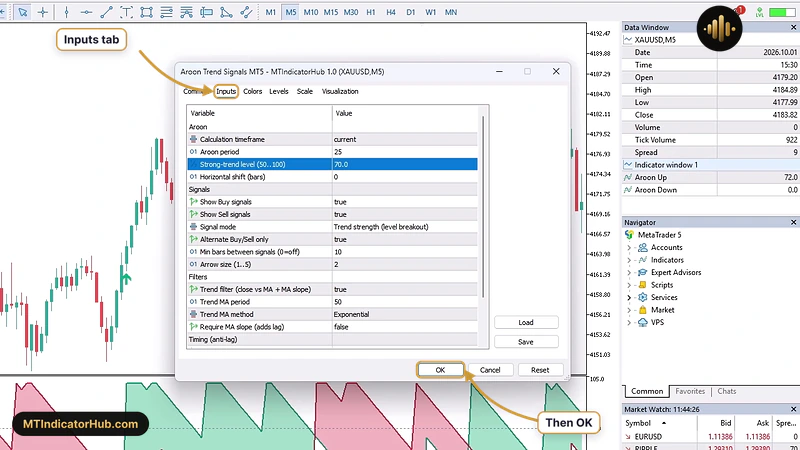
The Inputs tab of an MT5 indicator, then OK.
Installation complete
The indicator is listed under Indicators in the MetaTrader 5 Navigator and drawn on your chart.
After installing
Restyle the Chart and the Indicator
Chart colours sit in the chart's Properties (F8), on the Colors tab. A Color scheme drop-down applies a ready set such as Black on White or Green on Black, and each part of the chart can be changed by itself afterwards. For the indicator, Charts > Indicators List (Ctrl+I) lists everything on the chart; choose it, click Properties and adjust its own Colors tab. To reuse the result, Charts > Templates > Save Template keeps the chart colours together with the indicator and its inputs.
Troubleshooting
Troubleshooting a Missing Indicator
- With more than one MT5 installed, the file may have landed in the wrong terminal. Reopen the data folder from the MT5 you are working in.
- MetaTrader 5 ignores .ex4 files; take the MT5 build from the indicator page.
- A file outside MQL5\Indicators is not loaded, so move it out of Experts, Scripts or the data folder root.
- Until the list is reloaded nothing changes: use Refresh on Indicators in the Navigator, or restart MetaTrader 5.
- For a load error, the Toolbox window (Ctrl+T) has Experts and Journal tabs; a line there tells you why the indicator did not start.
FAQ
Frequently asked questions
No. MetaTrader 5 on phones and the MT5 web terminal work with built-in indicators only. Custom .ex5 files run in the desktop terminal for Windows or macOS.
MQL5\Indicators inside the data folder. Reach it from File > Open Data Folder, because every MT5 install keeps its data folder in a different place.
It is not. Refresh on the Indicators item of the Navigator reloads the folder; a restart is simply the slower way to do the same.
Check three things: the file is an .ex5, it is in MQL5\Indicators, and it sits in the data folder of the MT5 you have open.
Press Ctrl+I to open the Indicators List, pick the indicator and click Delete. The chart loses the indicator, while the .ex5 file stays in the folder for later use.